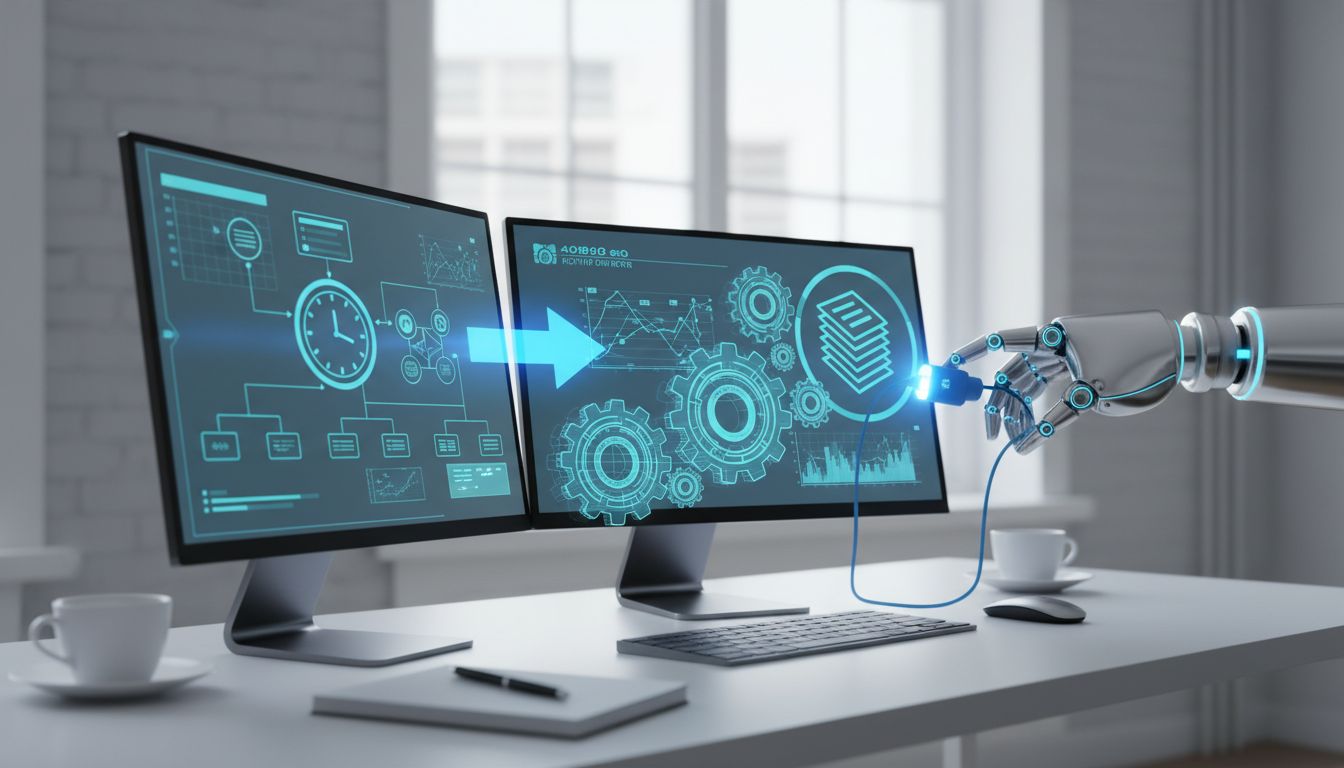

Desktop AI is changing fast. What used to feel like a chat window you opened only when you had a question is starting to become something much more useful: a workflow partner that is always close at hand, ready from the taskbar, and capable of continuing work in the background while you focus on something else.
That shift matters for everyday users, not just technical teams. Microsoft is pushing Copilot deeper into Windows and Microsoft 365, while Claude is appearing in more workplace tools and, through Microsoft’s Frontier program, now shows up inside mainline Copilot chat as well. Put together, the trend is clear: taskbar-native agents are turning Copilot and Claude into always-available workflow engines.
From chat assistant to workflow engine
For many people, the first wave of AI at work was mostly conversational. You asked a question, got a summary, maybe rewrote an email, and moved on. That was helpful, but it still left the actual task completion to you. The newer model is different because the assistant is being designed to keep going after the conversation starts.
Microsoft has been explicit about this direction. In its own words, Copilot is no longer only about discussion; it is meant to “take action, not just chat.” That is an important change in expectations. Instead of simply suggesting what to do next, Copilot is increasingly tied to workflows that can organize, trigger, and complete work across the apps many teams already use every day.
This is why the idea of a background agent matters so much. A good workflow engine does not need your full attention every second. It can gather context from emails, meetings, files, and messages, then continue working with occasional checkpoints where you review, approve, or adjust the result. That makes AI feel less like an interruption and more like a helpful desktop assistant.
Why the taskbar is becoming the front door for AI
On Windows, Microsoft’s consumer Copilot experience is tightly connected to the taskbar. Users can click the Copilot icon, press the Copilot key, or even say “Hey, Copilot” to begin. That makes access feel immediate. You do not have to search for a website, open a separate tool, or switch mental context just to get help.
That convenience may sound small, but it changes behavior. When AI lives on the taskbar, it becomes more likely to be used for quick moments throughout the day: clarifying a spreadsheet step, summarizing what is on screen, drafting a reply, or helping you decide the next action. The assistant becomes part of the normal desktop rhythm instead of a special destination.
This is why the phrase “launch from the taskbar, execute in the background, verify at checkpoints” fits the moment so well. The taskbar is the entry point, not the whole experience. What matters after launch is whether the assistant can keep helping beyond the first prompt, especially when your real work spans multiple apps and takes longer than a single chat exchange.
Copilot Vision shows the screen, but not every AI should click for you
Microsoft’s Windows Copilot Vision is a good example of how guidance and action are being separated. Vision can see the screen and help explain what is happening. It can point out what to do next and guide users step by step, which is especially valuable for non-technical users who often get stuck in unfamiliar menus, settings, or business tools.
At the same time, Microsoft clearly says Vision “will not take actions on your PC for you.” That distinction matters. Sometimes the most useful kind of AI is not an autonomous operator but a calm guide that helps you stay in control. For many desktop tasks, people want confidence and clarity more than full automation.
This creates an important layered model for the future desktop. One layer helps you understand what is on screen and what to do next. Another layer handles approved workflow automation in the background. Together, those layers can reduce frustration without making the experience feel risky or opaque.
Microsoft 365 Workflows brings natural-language automation into daily work
Microsoft has also built a more direct path from prompting to automation in Microsoft 365. Its support documentation describes Workflows as “an agent in Microsoft 365 Copilot that helps you automate work across Microsoft 365 using natural language.” That means users can describe what they want in plain English rather than building complex rules by hand.
What makes Workflows especially relevant is that it is designed for background automation. It can trigger actions on a schedule or in response to events, and it can automate work across Outlook, SharePoint, Teams, Planner, and Microsoft 365 data. For small teams and busy knowledge workers, this is where AI starts saving real time instead of only producing clever text.
Imagine a simple example. A team could automatically collect project updates from emails and Teams messages, organize them into a shared plan, and create follow-up tasks without constant manual copying and pasting. The user still sets the goal and reviews the outcome, but the repetitive middle steps can happen quietly in the background.
Copilot Cowork adds background execution with checkpoints
Microsoft’s Copilot Cowork pushes the idea even further. The company positions it as a “take action, not just chat” agent that keeps working in the background. Instead of waiting for you to issue every tiny instruction, it can build a plan grounded in emails, meetings, messages, files, and data, then continue progressing through that plan over time.
One of the smartest parts of this model is the checkpoint system. Microsoft says the plan continues in the background with checkpoints where users can confirm progress, make changes, or pause execution. That creates a practical middle ground between full manual work and full autonomy. You are not micromanaging every click, but you are not losing visibility either.
For everyday office work, that balance is powerful. Many tasks are too messy for a single command but too repetitive to deserve full attention. Preparing status updates, collecting stakeholder notes, sorting follow-up actions, or organizing incoming requests are all examples where background progress plus periodic review can feel much more natural than either pure chat or rigid automation.
Claude is becoming part of the same desktop workflow story
Claude is no longer just a separate AI brand sitting outside Microsoft’s world. Microsoft’s March 9, 2026 Frontier Transformation announcement states that Claude is now available in mainline Copilot chat through the Frontier program. Microsoft also says it is working closely with Anthropic and bringing the technology behind Claude Cowork into Microsoft 365 Copilot alongside the latest OpenAI models.
That is a meaningful development because it gives users more than one model path inside a familiar environment. For many teams, the future will not be about choosing a single assistant once and for all. It will be about using the best model or agent style for the task while keeping the desktop experience consistent and easy to access.
Anthropic is also pushing Claude into embedded workplace workflows more broadly. In early 2026, the company launched interactive Claude apps for tools such as Slack, Canva, Figma, Box, and Clay. Those integrations let users send messages, generate charts, and access cloud files inside Claude, which reinforces the same overall trend: AI is moving closer to where work already happens.
The broader AI desktop stack is taking shape
Microsoft is not alone in emphasizing background work on the computer. OpenAI now describes ChatGPT agent as something that “can do work for you using its own computer.” That messaging highlights end-to-end task handling, web navigation, file manipulation, and context preservation across a longer job instead of a one-off answer.
OpenAI’s Codex app is also leaning into long-running workflows. The company says it can manage multiple agents at once, run work in parallel, and use automations on an automatic schedule, with Windows support added in March 2026. OpenAI also introduced workspace agents in April 2026 so teams can run shared, long-running workflows under organizational permissions and controls.
Seen together, these moves suggest a new AI desktop stack is emerging. First, you launch an assistant quickly from a familiar place like the taskbar. Next, the assistant uses tools, apps, and organizational context to execute work in the background. Finally, you verify results at checkpoints or through summaries, rather than personally driving every step from start to finish.
Trust, controls, and visibility will decide what users adopt
As agents become more capable, control becomes just as important as convenience. Microsoft’s Copilot Studio updates show that the company understands this. Its computer-using agents now support Anthropic’s Claude Sonnet 4.5, and Microsoft has highlighted detailed run summaries, time-stamped workflow monitoring, Dataverse logging options, secure credentials, and Cloud PC pools for scaling autonomous agents.
That may sound enterprise-focused, but the underlying lesson applies to everyone. People are more willing to use AI for meaningful tasks when they can see what happened, understand what data was used, and stop or adjust the process when needed. Background automation works best when it feels visible and accountable rather than mysterious.
This is especially important for non-technical users and small teams. They do not just want a powerful system; they want one that feels safe, understandable, and easy to correct. The winners in this space will likely be the assistants that combine helpful guidance, background execution, and clear oversight in a way that feels approachable from the first day.
The big story is not simply that Copilot and Claude are getting smarter. It is that they are being woven into real desktop workflows. With taskbar access in Windows, natural-language automation in Microsoft 365, background execution in Cowork, and Claude expanding through apps and Microsoft’s Frontier program, AI is becoming less of a chatbot and more of a practical operating layer for daily work.
For users, that is encouraging news. You may soon start a task with a quick prompt from the taskbar, let an agent continue in the background, and step in only when a checkpoint needs your attention. That kind of experience can save time, reduce frustration, and make desktop work feel lighter. In other words, taskbar agents bring Copilot and Claude into seamless background workflows in a way that finally matches how real work gets done.