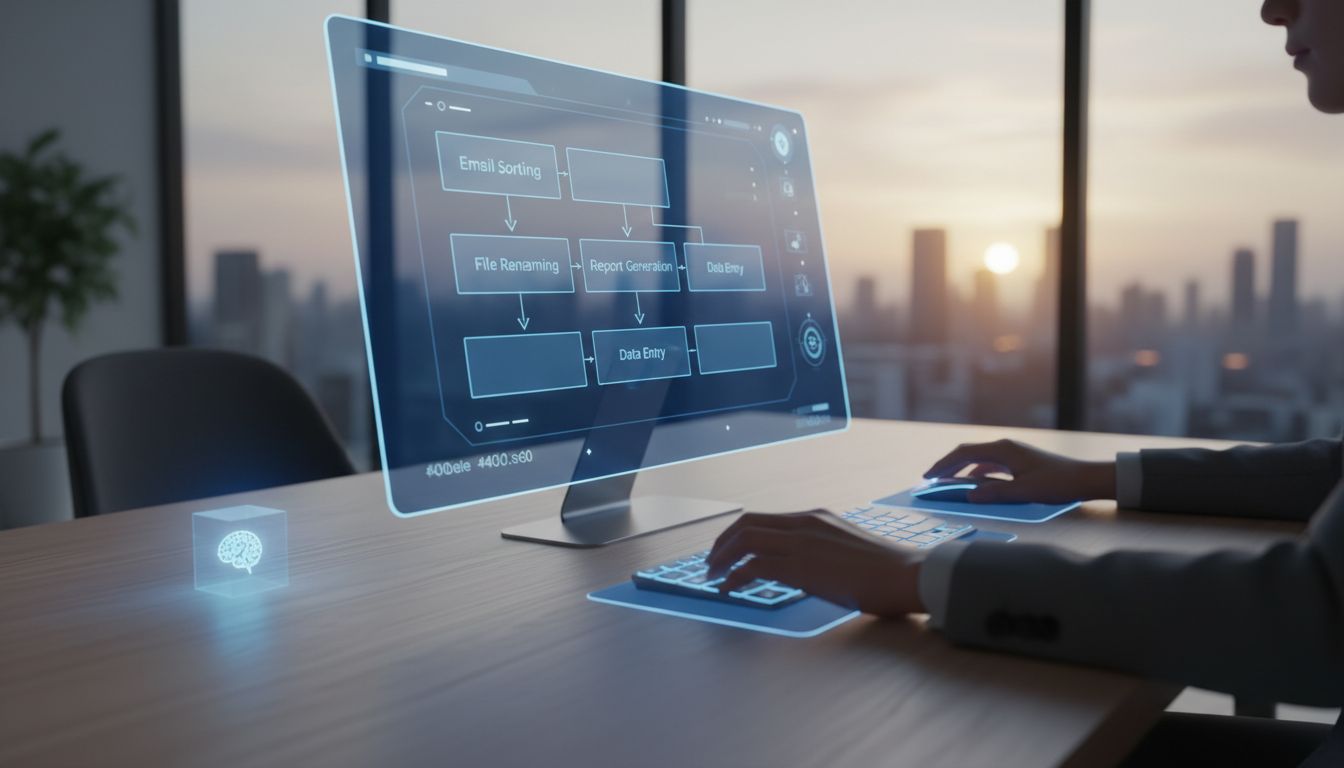

Desktop work is full of tiny repeated actions: opening the same apps, copying information between windows, renaming files, clicking through old internal tools, and typing the same phrases over and over. For many people, those tasks feel too small to justify a formal automation project, yet they add up to real time loss and daily frustration. A practical answer is to combine AutoHotkey and no-code recorders so you can start simple, then make your automations more dependable as your needs grow.
This hybrid approach fits non-technical users especially well. You can record a process to discover the steps quickly, then use a lightweight script to improve timing, window targeting, and shortcuts. Microsoft describes desktop recording this way: “Power Automate enables you to design desktop flows automatically by replicating the tasks you wish to automate.” At the same time, AutoHotkey remains a “free, open source macro-creation and automation software utility” for Windows, making it an approachable precision layer for everyday desktop workflows.
Why desktop workflow automation matters now
Many business tasks still happen inside Windows desktop apps, not just in the browser. That includes finance tools, inventory systems, legacy Win32 applications, old VB6-style interfaces, remote desktops, and line-of-business software built years ago. These environments are common in small teams and operational roles, which is why desktop automation continues to matter even as cloud apps expand.
Microsoft’s roadmap has continued to emphasize desktop flows as the robotic process automation option for Windows applications, services, and experiences. That signals ongoing investment, not a fading category. For everyday users, this is good news: the tools around desktop automation are becoming easier to access, while still supporting more advanced use cases when needed.
The real opportunity is not to automate everything at once. It is to remove the annoying repeat work that slows you down every day. A few saved clicks on a process you repeat 20 times can create meaningful time savings, especially when the automation is easy to launch, easy to pause, and easy to update.
Start with no-code recorders to capture the workflow
No-code recorders are great for discoverability. If you already know how to perform a task manually, a recorder can quickly turn your actions into a repeatable macro or desktop flow. This is often the fastest way to build a first version because you do not need to think in programming logic right away. You simply demonstrate the process.
Microsoft has been improving this experience. Its desktop-flow recorder now captures both UI Automation (UIA) and Microsoft Active Accessibility (MSAA) selectors, which is especially useful for older desktop applications that can be difficult to automate reliably. That matters because many real-world workflows still depend on legacy apps where simple coordinate clicks alone are too fragile.
There is also a newer AI-assisted option in preview. Microsoft’s prerelease documentation, updated January 16, 2026, says: “Building desktop flows is now easier than ever with Record with Copilot, also known as the AI Recorder.” The same documentation says recordings are uploaded securely to the cloud, encrypted in transit and at rest, deleted within 24 hours at most, and are not used to train the AI model. For teams that want faster setup without deep scripting, this can lower the barrier to getting started.
Where AutoHotkey adds precision and resilience
Recorders are excellent for creating a first draft, but they often produce workflows that depend too heavily on fixed delays, the currently active window, or exact screen positions. That is where AutoHotkey helps. Its actively maintained v2 ecosystem still provides strong desktop features such as hotkeys, remapping, sending keystrokes, text expansion, and window management, all of which are useful when you want a workflow to feel dependable in daily use.
One of the biggest advantages is better control over windows. Instead of hoping the right app is active, you can target windows by title, class, process, or even by specific window handles. AutoHotkey’s WinGetList can return an array of matching window IDs, which is useful when several similar windows are open and you need the correct one rather than the first visible match.
AutoHotkey is also stronger when timing matters. Rather than using fragile fixed sleeps, you can wait for a window to appear with WinWait and set a timeout. That small change can make an automation much more stable when an app loads slowly, a dialog appears late, or a computer is under heavy load.
Use Window Spy and window rules to harden recorded macros
A very practical next step after recording a workflow is to inspect the target application more carefully. AutoHotkey’s documentation says, “AutoHotkey comes with a script called Window Spy,” and it helps confirm a window’s title, class, and process name. This is one of the easiest ways to turn a rough recorder output into a more reliable shortcut.
Window matching details matter more than many users expect. In AutoHotkey, window titles and text are case-sensitive by default, and partial title matching works unless you change behavior with SetTitleMatchMode. If a recorded process breaks because a window title changed slightly, this is often the first place to look. A more deliberate matching strategy can prevent daily failures.
Hidden windows also affect reliability. AutoHotkey’s DetectHiddenWindows defaults to false, which means hidden windows are usually ignored, and even cloaked windows in modern Windows can count as hidden. This explains many “it worked yesterday” problems when a recorder and a script behave differently. Understanding these rules helps you troubleshoot instead of guessing.
Build everyday shortcuts with hotkeys, hotstrings, and remaps
Not every automation needs to be a long workflow. Some of the highest-value improvements are tiny shortcuts you can trigger dozens of times a day. AutoHotkey shines here because it can turn repetitive actions into hotkeys for launching apps, arranging windows, pasting templates, or moving through a routine in one step.
Hotstrings are especially useful for text-heavy work. They can expand short abbreviations into full phrases, email replies, file paths, or CRM notes. This is ideal for knowledge workers and support teams who type repeated content all day. One important detail from the docs: by default, hotstrings are never triggered by keystrokes produced by AutoHotkey itself. That matters if you are designing chained text automations and wondering why one expansion does not activate another.
Remapping can also simplify awkward keyboard habits, but it has limits. AutoHotkey documents that remapped keys can trigger normal hotkeys, yet they cannot trigger mouse hotkeys or hook hotkeys by default. In practice, this means a remap layer is powerful, but you still need to test how it interacts with the rest of your workflow stack.
Choosing the right tool for the job
The best current split is simple: use no-code recorders for speed and discovery, and use AutoHotkey for precision and resilience. If you are still figuring out the process, recording is usually the fastest path. If the process is already known and you want dependable behavior across app launches, changing window titles, or multiple open instances, scripting usually gives you more control.
There are also bridge tools that sit between pure no-code and handwritten scripting. Pulover’s Macro Creator describes itself as an “Automation Utility – Recorder & Script Generator”, which makes it a natural stepping stone for users who want a visual way to generate AutoHotkey-based automation. Jitbit Macro Recorder similarly emphasizes that recorded activity can be saved as a macro, bound to a hotkey, extended with custom commands, or compiled into an EXE file.
This is why a record-first, harden-later model is becoming so practical in 2026. Microsoft is improving selector-based and AI-assisted recording, while AutoHotkey continues to offer detailed control over windows, timing, text, and input. Together, they support a workflow where you prototype quickly and then stabilize only the parts that actually need extra attention.
Cost, trials, and scaling considerations
Cost often shapes which automation path makes sense. AutoHotkey remains free and open source, which makes it appealing for individual users, lean teams, and anyone experimenting with desktop workflow automation before adopting a broader platform. It is often the lowest-friction choice when the goal is personal productivity or a small internal shortcut.
For no-code desktop RPA, Microsoft’s pricing provides a clear benchmark. Power Automate Premium is listed at $15 per user per month when paid yearly, and it includes cloud flows, attended desktop flows, and process or task mining entitlements. There is also still a 30-day free trial, which is useful for validating recorder-based workflows before you commit to a paid plan.
If you need unattended automation, the pricing changes significantly. Power Automate Process is listed at $150 per bot per month, while Power Automate Hosted Process is $215 per bot per month with a Microsoft-hosted virtual machine. Microsoft also documents pay-as-you-go desktop flow pricing at $0.60 per attended run and $3 per unattended run. For small teams, that makes attended automation and human-in-the-loop workflows easier to justify early on, while unattended bots are better reserved for stable, high-volume processes.
Practical implementation tips for small teams
For small teams, the easiest rollout strategy is to begin with one painful process and one owner. Record the task, run it for a few days, and note where it breaks. Then use AutoHotkey to improve the fragile parts: replace delays with waits, target the right window more carefully, add a hotkey, and create a quick pause option so automation does not get in the way during meetings or support sessions.
That pause option is more important than it sounds. AutoHotkey’s Suspend lets you temporarily disable and later re-enable hotkeys and hotstrings. This is helpful when you are presenting, gaming, using remote support tools, or working in an app where your normal shortcuts would be disruptive. Good automation should feel supportive, not intrusive.
If your team moves into more formal Power Automate deployments, pay attention to operational details too. Microsoft documents practical capabilities such as reusing a Windows session for unattended runs, which can reduce setup over for recurring jobs. Its prerequisites also mention that mixed-account scenarios involving trial or paid accounts with free Microsoft accounts require Power Automate for desktop version 2.6.48.21069 or above. Small details like that can save hours of troubleshooting later.
The smartest way to streamline daily desktop workflows with AutoHotkey and no-code recorders is not to treat them as competing tools. Recorders help you capture what you do. AutoHotkey helps you refine how reliably it happens. Used together, they create a workflow automation path that feels accessible to beginners and still powerful enough for real-world desktop complexity.
If your day includes repetitive clicks, repeated text, or juggling multiple Windows applications, start small. Record one routine, improve one weak point, and keep the parts that genuinely save time. That simple habit can turn desktop automation from an intimidating project into a practical everyday advantage for individuals and small teams alike.